Welcome to Discord for Web! 🎉
Thank you for installing Discord for Web, your lightweight companion for Discord that adds desktop notifications, unread badges, and smart window controls without changing how Discord works.
🚀 Quick Start: Pin the extension to your toolbar, open discord.com, and start using the floating toolbar that appears. Enable notifications when prompted to get desktop alerts for new messages.
💡 Designed for Productivity: Discord for Web helps you stay connected and organized with features like separate Discord windows, fullscreen mode, one-click refresh, and auto-start options.
🔒 Privacy First: All features run locally in your browser. We don't collect data, access your messages, or connect to external servers.
For the best experience, keep the extension pinned to your toolbar and enable notifications when prompted by your browser.
How to Use Discord for Web
Our extension enhances your Discord experience with smart productivity features. Here's a complete guide to get started:
Key Features
- Desktop Notifications: Get notified of new messages even when Discord is minimized
- Unread Badge: See unread message count directly on the extension icon
- Floating Toolbar: Quick-access controls inside Discord interface
- One-Click Refresh: Refresh Discord instantly with a single click
- Auto-Start: Automatically open Discord when you start your browser
- Separate Window: Open Discord in a clean, dedicated browser window
- Fullscreen Mode: Toggle fullscreen view for focused messaging
- Incognito Mode: Open Discord in private browsing mode
- Sound Control: Toggle notification sounds on/off
- Lightweight & Fast: Minimal resource usage, battery-friendly
Getting Started
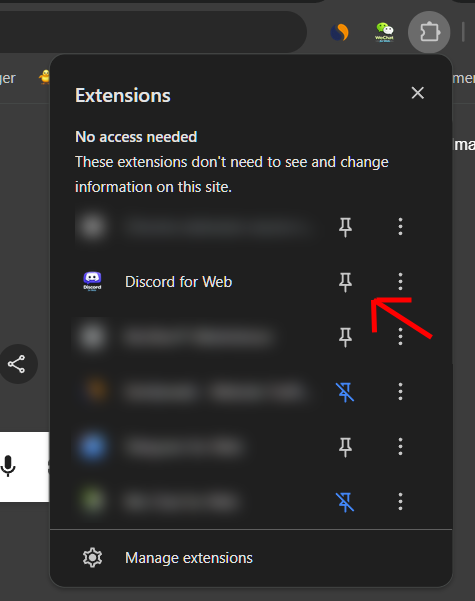
Install and Pin Extension
After installing from Chrome Web Store, make sure to pin the extension to your toolbar (click the puzzle icon, find Discord for Web, and click the pin icon).
Open Discord
Go to discord.com and log in to your account. The extension will automatically activate and inject the floating toolbar.
Access the Floating Toolbar
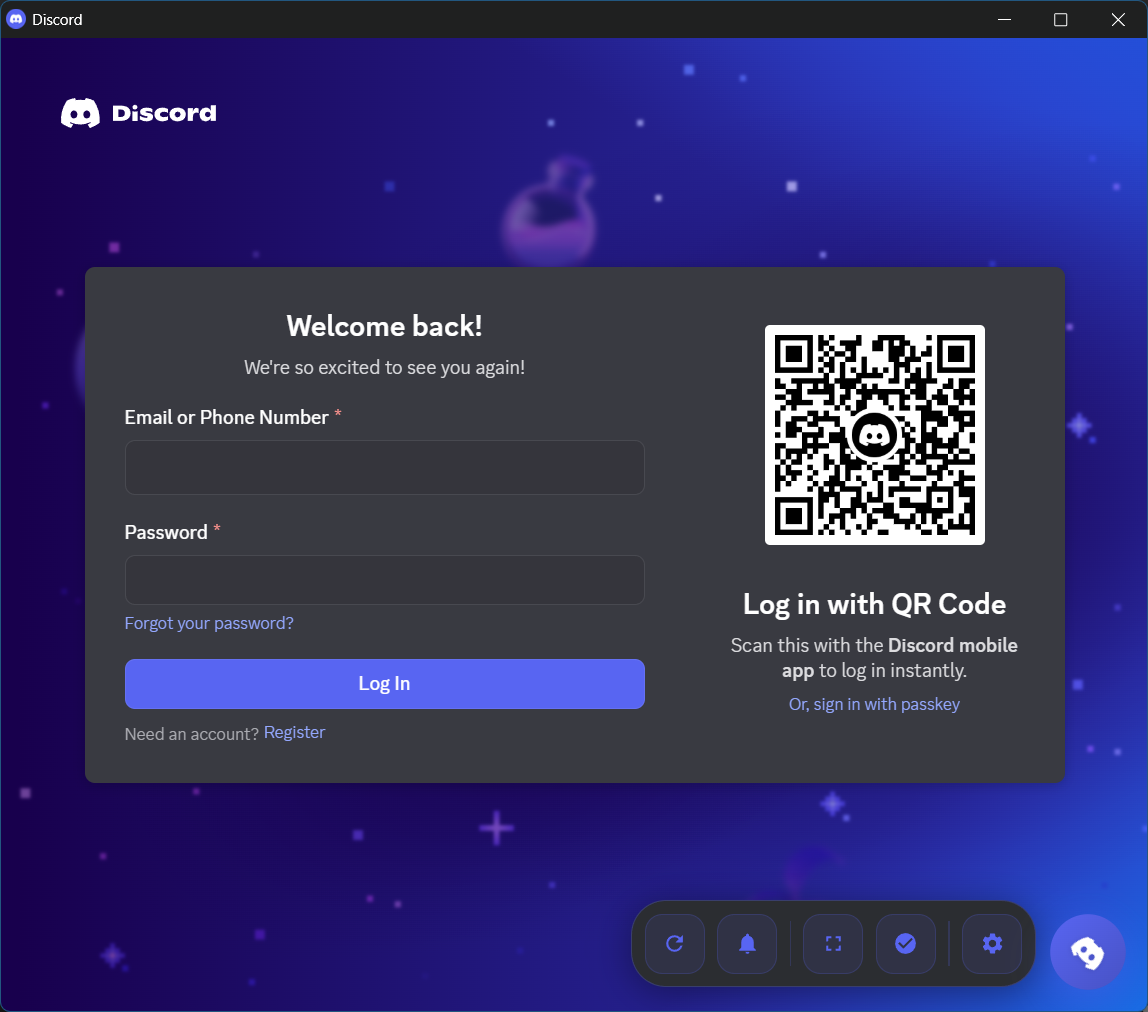
Once Discord loads, you'll see a compact floating toolbar with a Discord logo appear in the bottom-right corner. Click it to reveal quick-access controls.
Using Key Features
Desktop Notifications Setup
When you first receive a message, your browser will ask for notification permissions. Click "Allow" to enable desktop notifications for DMs, mentions, and server messages.
Tip: If you accidentally blocked notifications, click the lock icon in your browser's address bar and change the notification setting to "Allow".
Floating Toolbar Controls
Click the Discord logo button to expand the toolbar and access these features:
- 🔄 Refresh: Instantly reload Discord if it freezes or needs updating
- 🔔 Notifications: Toggle desktop notifications on/off
- ⛶ Fullscreen: Toggle fullscreen mode for distraction-free chatting
- ✓ Focus: Bring the Discord window to the front
- ⚙️ Settings: Configure auto-start, sounds, and notification preferences
Extension Icon Features
Click the Discord for Web extension icon in your toolbar to:
- Open Discord Window: Launch Discord in a dedicated popup window
- View Unread Count: The icon badge shows your total unread messages
- Quick Focus: Click to bring an existing Discord window to focus
Unread Message Badge
The extension icon in your toolbar will show a blurple badge with the number of unread messages and mentions. This updates in real-time as you receive new messages.
Settings Panel
Click the ⚙️ settings button in the floating toolbar to customize:
- 🚀 Auto-Start: Launch Discord automatically when Chrome starts
- 🔔 Notifications: Enable or disable desktop notifications
- 🔊 Sound: Toggle notification sounds on/off
- 🧪 Test Notification: Send a test notification to verify settings
Separate Window Mode
Click the extension icon to open Discord in a dedicated popup window. This window:
- Remembers its size and position
- Can be maximized/restored with the fullscreen button
- Stays separate from your other browser tabs
- Maintains focus when clicked
Important: This extension only works with the Discord web interface at discord.com. It does not work with the Discord desktop app or mobile Discord.
Keyboard Shortcuts & Tips
Pro Tips
- Quick Focus: Click the extension icon anytime to bring Discord window to front
- Persistent Toolbar: The floating toolbar automatically re-appears if Discord removes it
- Multiple Accounts: Use incognito mode for a second Discord account (requires incognito permission)
- Window Management: The extension remembers your window size and position
- Smart Updates: Unread count updates every 5 seconds automatically
Troubleshooting
Toolbar Not Appearing?
- Refresh the Discord page (F5 or Ctrl+R)
- Check that the extension is enabled in
chrome://extensions/ - Make sure you're on discord.com (not the desktop app)
- Check browser console (F12) for any error messages
Notifications Not Working?
- Click the lock icon in your address bar and ensure notifications are allowed
- Open the settings panel and click "Test Notification"
- Check your system notification settings (Windows/Mac)
- Make sure "Do Not Disturb" is off in your OS
Extension Icon Does Nothing?
- Right-click the extension icon and click "Inspect popup"
- Check the console for error messages
- Try removing and reinstalling the extension
- Ensure all permissions are granted
Privacy & Security
Discord for Web operates entirely locally in your browser. We do not:
- Collect or store any personal data
- Access your Discord messages, DMs, or server content
- Send data to external servers
- Modify Discord's core functionality
- Intercept your messages, calls, or video chats
- Track your browsing or Discord usage
All features are implemented using standard browser APIs for notifications, window management, and content scripts. Your Discord conversations remain private and encrypted.
Permissions Explained
Why We Need These Permissions
- discord.com access: Required to inject the floating toolbar and detect unread messages
- notifications: Enables desktop notifications for new messages
- storage: Saves your preferences (auto-start, sound settings, window position)
- windows: Creates and manages the separate Discord popup window
- tabs: Detects Discord tabs and manages window focus
- system.display: Detects screen size for optimal window positioning
Feature Highlights
Smart Notifications
Never miss an important message. Get desktop notifications for DMs, mentions, and server messages even when Discord is minimized.
Dedicated Window
Open Discord in a clean, separate popup window. Perfect for keeping Discord visible alongside other apps.
Unread Badge
See your unread message count right on the extension icon. Stay on top of your conversations at a glance.
Lightweight
Minimal resource usage and battery-friendly design. Won't slow down your browser or drain your laptop battery.
Fullscreen Mode
Toggle fullscreen for distraction-free messaging. Perfect for intense gaming sessions or focused work.
Customizable
Configure auto-start, notifications, sounds, and more. Tailor the extension to match your workflow.
Frequently Asked Questions
Q: Does this extension work with the Discord desktop app?
A: No, this extension is designed specifically for Discord Web at discord.com. It does not interact with the Discord desktop application.
Q: Can I use this with multiple Discord accounts?
A: Yes! You can use the incognito feature to open a second Discord account in a private window. Just enable incognito mode in the extension settings first.
Q: Will this extension access my Discord messages?
A: No. The extension only reads unread message counts from Discord's interface. It never accesses the content of your messages, DMs, or calls.
Q: Why do I need to grant so many permissions?
A: Each permission serves a specific purpose: notifications for alerts, storage for settings, windows for popup management, and discord.com access for the floating toolbar.
Q: Does this replace the Discord desktop app?
A: No, it enhances Discord Web with desktop app-like features. You can use either one based on your preference.
Q: Is this extension free?
A: Yes! Discord for Web is completely free with no ads, premium features, or subscriptions.
Q: Will this extension slow down Discord?
A: No. The extension is optimized for minimal performance impact. It only checks for unread messages every 5 seconds and uses negligible resources.
Ready to Enhance Your Discord Experience?
Install Discord for Web today and enjoy powerful desktop features without leaving your browser!
Install from Chrome Web StoreFree • No Ads • Privacy-Focused
Troubleshooting
Extension Not Working?
If the extension doesn't seem to be working, try these steps:
- Refresh Discord for Web: Completely reload the Discord for Web page (Ctrl+F5 or Cmd+Shift+R)
- Toggle Extension: Go to chrome://extensions/, find Discord for Web, and toggle it off and on
- Restart Chrome: Close and reopen your Chrome browser
- Reinstall: Remove and reinstall the extension from the Chrome Web Store
If problems persist, please contact us at [email protected].