Welcome to WHATSAPP for Web! 🎉
Thank you for installing WHATSAPP for Web, your lightweight companion for WhatsApp Web that adds desktop notifications, unread badges, and smart window controls without changing how WhatsApp works.
🚀 Quick Start: Pin the extension to your toolbar, open web.whatsapp.com, and start using the floating toolbar that appears. Enable notifications when prompted to get desktop alerts for new messages.
💡 Designed for Productivity: WHATSAPP for Web helps you stay connected and organized with features like separate WhatsApp windows, fullscreen mode, one-click refresh, and auto-start options.
🔒 Privacy First: All features run locally in your browser. We don't collect data, access your messages, or connect to external servers.
For the best experience, keep the extension pinned to your toolbar and enable notifications when prompted by your browser.
How to Use WHATSAPP for Web
Our extension enhances your WhatsApp Web experience with smart productivity features. Here's a complete guide to get started:
Key Features
- Desktop Notifications: Get notified of new messages even when WhatsApp Web is minimized
- Unread Badge: See unread message count directly on the extension icon
- Floating Toolbar: Quick-access controls inside WhatsApp Web interface
- One-Click Refresh: Refresh WhatsApp Web instantly with a single click
- Auto-Start: Automatically open WhatsApp Web when you start your browser
- Separate Window: Open WhatsApp in a clean, dedicated browser window
- Fullscreen Mode: Toggle fullscreen view for focused messaging
- Incognito Mode: Open WhatsApp in private browsing mode
- Sound Control: Toggle notification sounds on/off
- Lightweight & Fast: Minimal resource usage, battery-friendly
Getting Started
Install and Pin Extension
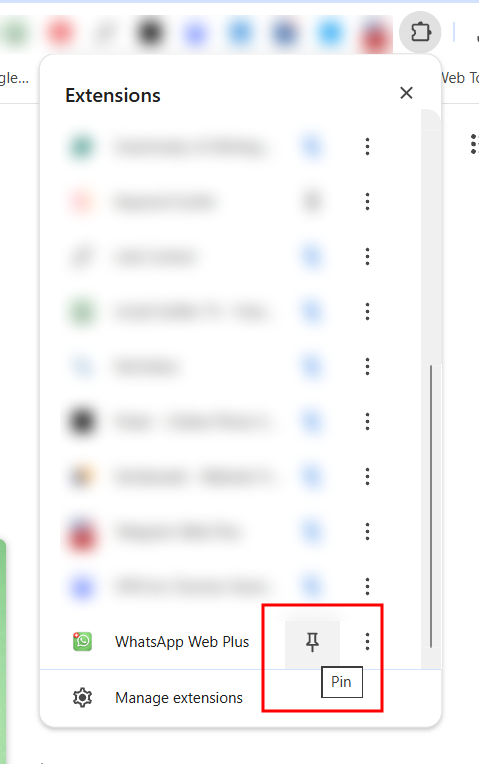
After installing from Chrome Web Store, make sure to pin the extension to your toolbar (click the puzzle icon, find WHATSAPP for Web, and click the pin icon).
Open WhatsApp Web
Go to web.whatsapp.com and log in to your account by scanning the QR code. The extension will automatically activate.
Access the Floating Toolbar
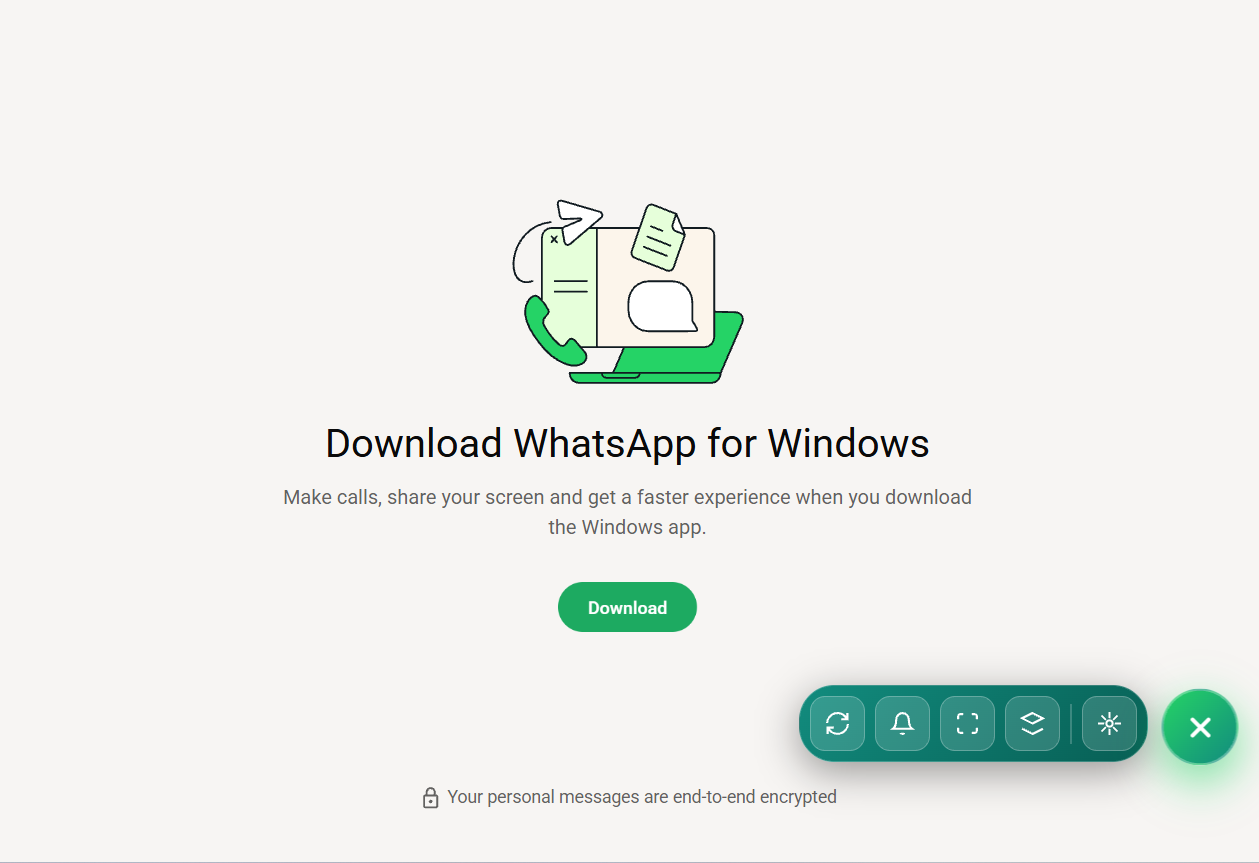
Once WhatsApp Web loads, you'll see a compact floating toolbar appear in the WhatsApp interface. This gives you quick access to all features.
Using Key Features
Desktop Notifications Setup
When you first receive a message, your browser will ask for notification permissions. Click "Allow" to enable desktop notifications.
Tip: If you accidentally blocked notifications, click the lock icon in your browser's address bar and change the notification setting to "Allow".
Window Controls
Use the floating toolbar to:
- 🌐 Open in New Window: Click the window icon to open WhatsApp in a clean, separate window
- 🔲 Fullscreen: Toggle fullscreen mode for distraction-free messaging
- 🔄 Refresh: Instantly reload WhatsApp Web if it freezes or needs updating
- 👤 Incognito: Open WhatsApp in private browsing mode for temporary sessions
Unread Message Badge
The extension icon in your toolbar will show a green badge with the number of unread messages. Click the icon to quickly jump to WhatsApp Web.
Auto-Start Configuration
Right-click the extension icon and select "Options" to enable auto-start. WhatsApp Web will automatically open when you launch Chrome.
Important: This extension only works with the official WhatsApp Web interface at web.whatsapp.com. It does not work with the desktop app or mobile WhatsApp.
Privacy Information
WHATSAPP for Web operates entirely locally in your browser. We do not:
- Collect or store any personal data
- Access your WhatsApp messages or contacts
- Send data to external servers
- Modify WhatsApp's core functionality
- Intercept your messages or calls
All features are implemented using standard browser APIs for notifications and window management. Your WhatsApp conversations remain end-to-end encrypted.
Troubleshooting
Extension Not Working?
If the extension doesn't seem to be working, try these steps:
- Refresh WHATSAPP for Web: Completely reload the WHATSAPP for Web page (Ctrl+F5 or Cmd+Shift+R)
- Toggle Extension: Go to chrome://extensions/, find WHATSAPP for Web, and toggle it off and on
- Restart Chrome: Close and reopen your Chrome browser
- Reinstall: Remove and reinstall the extension from the Chrome Web Store
If problems persist, please contact us at contact@techinterval.com.